
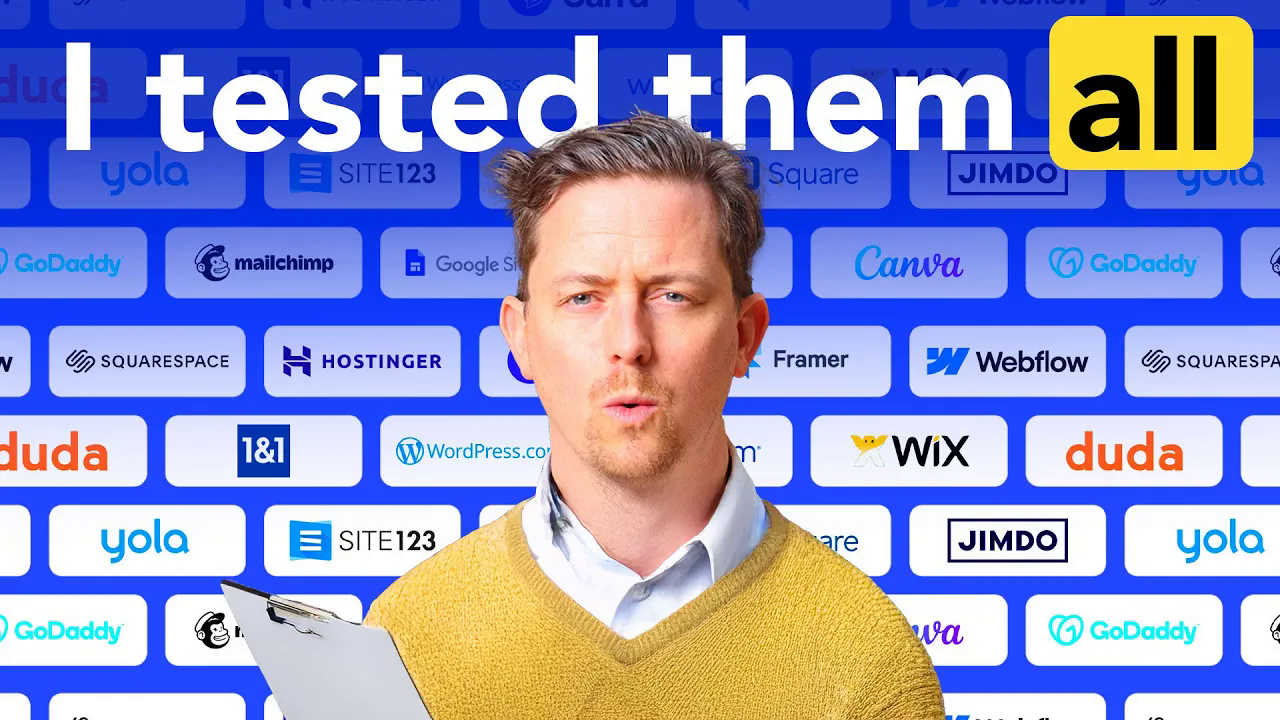

This article is a guest piece adapted from a video by Steve Benjamins. Steve has spent over a decade helping people find the right website builder. In 2012, Steve launched a website builder. But he soon realized the market was already crowded with competitors. Rather than adding yet another website builder, he saw a need to help people navigate the existing website builders and find the best ones. That insight led him to create Site Builder Report in 2013. There, he began reviewing website builders. In 2017, he added a YouTube channel called Steve Builds Websites. While he still writes at Site Builder Report, his real passion has shifted toward creating videos for Steve Builds Websites. You can find Steve’s YouTube channel at youtube.com/@stevebuildswebsites and his website at stevebuildswebsites.com.
For this project, Steve took on an ambitious challenge. He built the same band website 20 times to find the best website builder.
“I just finished building the same website 20 times.”
Steve paid for 20 different website builders with his own credit card. He tried building the exact same website with each one. His goal was simple. Find a Goldilocks website builder. One that balances ease of use, customization, responsive design, and cost. The perfect fit for a small band or personal small business website.
Methodology & Categories Overview

I spent a couple of weeks building the website with each builder. I used the same content and design goals every time. This kept the comparison fair.
“As I did, I noticed they fell into different categories.”
The builders naturally sorted into groups. Each group shared a similar way of working. They also gave similar user experiences. I organized them into five main categories. The first is “definitely not.” Then come “blank canvas” builders, “section editors,” and “just okay” options. After that are the higher tiers. Those lead to my final choice.
I looked at several things when testing each builder. First was ease of use. Could I get started quickly? Did the tools make sense? Next was customization. How far could I go when I needed to tweak something? I also checked responsive behavior. Did the site look good on phones, tablets, and desktops?
Pricing mattered too. I looked at both introductory prices and ongoing costs. Some builders lure you in with low rates. Then they jump up later. I also paid attention to trustworthiness. Was the checkout process clear? Did billing feel honest? Finally, I tested AI features. Could AI help with content and images? Or was it just hype?
I won’t review all 20 builders in detail here. Instead, I’ll highlight key examples from each category. These examples show what works and what doesn’t. You’ll see the patterns that define each group.
If you want the full picture, I’ve included complete notes and links to all 20 sites in the resource list. You can explore every builder I tested. But for now, let’s start with the first category: the ones that didn’t make the cut.
Definitely Not: Shady or Too-Limited Builders

Some website builders left a bad first impression. I call this group the “definitely not” category. These builders failed for one of two reasons. Either they used shady billing practices or they had painful limitations. Let me show you what I mean.
GoDaddy: Sneaky Cart Items
GoDaddy had a serious trust problem. When I tried to upgrade to a paid plan, something weird happened. I went to checkout. But there were two items in my shopping cart. I only wanted to buy a website. Why were there two items?
When I looked closer, I saw my website plan. But I also saw a Microsoft 365 email product. I wondered if I had added it by accident. So I removed it. Then I went through checkout again. And again, it appeared in my cart.
Here’s what made it even worse. The email product showed a cost of $0. That meant the total price didn’t go up. You might not even notice the extra product was there. But a year later, GoDaddy would start charging $130 for a Microsoft email product I never realized I signed up for.
“So I’m definitely not going to use them.”
This kind of trick destroys trust. I want a builder that’s honest from the start.
Mailchimp: Dark Patterns and Wrong Billing
Mailchimp raised red flags too. The first problem came during signup. There was a checkbox about marketing emails. Most people would think checking the box means you want the emails. But Mailchimp did the opposite. By not checking the box, you agreed to get their marketing emails. That’s a classic dark pattern. It tricks users on purpose.
The second problem was billing. During checkout, Mailchimp said I would be charged on June 4th. But that didn’t happen. They charged me two weeks earlier on May 20. The date they promised was wrong. When a company treats you like this, it feels like a red flag.
I still built websites with Mailchimp and GoDaddy. But these experiences made me uncomfortable. Trust matters. If a company tricks you at signup or checkout, what else might they do later?
Google Sites: Honest but Limited
Not every builder in this category is shady. Google Sites is a good example. Google Sites wasn’t shady at all. In fact, it was completely free. But it had serious limits on customization.
For example, I couldn’t move text where I wanted it. I wanted to put some text at the bottom of the page. Google Sites wouldn’t let me. It also automatically darkened my hero image. There was no way to change that.
When I previewed the site, I noticed more problems. Google Sites added a search icon to the navigation. There was no way to turn it off. I wanted to replace it with a button. But that wasn’t possible. Even on mobile, the search icon stayed. Plus, there was another icon I couldn’t remove.
Google Sites might work for the right project. I think it’s pretty popular in academia, for example. But for a polished band site, it fell short. You get what you pay for. It’s free but not customizable.
More Builders in This Category
GoDaddy, Mailchimp, and Google Sites show the range of problems in this category. Some builders use deceptive practices. Others are simply too limited by design. Either way, they didn’t make the cut for my band website.
I also tested other builders that landed in this group. For example, Zoho Sites had its own set of issues. You can find full notes on all the builders I tested in the resource list. Those notes include details on additional “definitely not” options.
The key lesson here is simple. Not all website builders are created equal. Some will try to sneak charges into your cart. Others will trick you with confusing checkboxes. And some are just too basic to create a professional site. Pay attention to these warning signs. They can save you time, money, and frustration.
Blank-Canvas Editors: Freedom vs. Responsiveness (Canva)

The next category is blank-canvas editors. This group has just one website builder: Canva.
What Is a Blank-Canvas Editor?
A blank-canvas editor lets you grab any element and move it anywhere on the page. You can drag text, images, or buttons to any spot you want. You can even drag them right off the page if you like.
This feels familiar. We’re used to documents on computers working this way. Word processors and design tools give us complete freedom. You can place anything anywhere. It feels natural to think, “I should be able to drag this wherever I want.”
But here’s the problem. A website is not a document.
“But a website should not be a blank canvas. Websites need structure.”
Why Websites Need Structure
Websites must work on many different devices. People visit your site from phones, tablets, laptops, and desktops. Your site needs to look good on all of them. This is called responsive design.
Responsive design means your layout adapts to the screen size. On mobile, your navigation should collapse into a menu icon. On desktop, your hero image should stretch across the screen. Text and buttons need to reorganize themselves so they stay readable and usable.
Structure makes this possible. When a builder knows how elements relate to each other, it can rearrange them smartly. Without structure, the builder has to guess. And those guesses often fail.
Testing Canva’s Responsive Behavior
I built my band website in Canva. It looked fine at first. But then I tested it. A simple way to check responsive design is to resize your browser window. A good website should look great at any size.
So I grabbed the edge of my browser and made it smaller. What happened? The website just shrank. Everything got tinier. The navigation became so small you could barely read it. Nothing reorganized. Nothing adapted. The layout stayed exactly the same, just smaller.
This is not responsive design. On a real mobile device, users would struggle. Tiny navigation links are hard to tap. Shrunken text is hard to read. The hero image doesn’t reformat. Text doesn’t reposition into a mobile-friendly layout.
Canva tries to guess how to make your site responsive. But without built-in structure, the results are disappointing. You don’t get a proper mobile menu. You don’t get a stretched hero section. You don’t get pinned text that stays readable. You just get a miniature version of your desktop site.
The Bottom Line
Blank-canvas editors feel intuitive. They work like the design tools we already know. If you’re used to document editors, Canva feels comfortable.
But for real-world websites, this approach falls short. Websites need to look good on phones, tablets, and desktops. Without guaranteed responsive rules, blank-canvas builders can’t deliver. They might work for a one-page flyer or a simple graphic. But for a professional website that needs to work on all devices, they’re a poor fit.
Canva is a powerful tool for many things. But building a responsive website isn’t one of them.
Section Editors: Fast but Limited (Square example)

The next category is section editors. These builders work in a specific way. You build your page by adding pre-designed sections. Then you adjust what’s inside each section. But there are limits to what you can change.
How Section Editors Work
Let me show you an example using Square. In Square, you add sections to your page. Each section comes pre-built with certain elements. For instance, you might add a section that includes a title, some text, and a link. These three elements come as a package.
Once you add a section, you can toggle elements on or off. Don’t want the link? Turn it off. Don’t need the title? Hide it. That part is handy.
But here’s the catch. You can’t add new elements to the section. You also can’t move the elements around. The section gives you what it gives you.
“Just here is your section and you get what you get.”
Every builder in this category works this way. Some are more flexible than others. But they all share the same basic approach. You pick sections. You toggle what’s inside. But you can’t rearrange or add elements freely.
The Upside: Speed and Simplicity
Section editors do have a benefit. Picking from pre-designed sections is fast. You don’t have to design from scratch. You don’t have to worry about spacing or alignment. The section handles that for you.
This approach also reduces design friction. If you’re not a designer, you don’t have to make as many decisions. The builder has already made design choices for you. You just pick the section that looks closest to what you want.
For quick sites, this can be a real time saver. If you need a simple website up fast, section editors get you there.
The Downside: Cookie-Cutter Limits
But the speed comes with a cost. Section editors feel limited. They can feel cookie-cutter. When you want to create a slightly different layout, you hit a wall.
For example, I wanted a specific footer layout for my band site. In Square, there were only two footer options. Neither looked quite right. If I could just move the elements around, it would be easy. But I couldn’t. I had to settle for something close but not perfect.
This happens over and over with section editors. You find a section that’s almost right. But you can’t tweak it to make it exactly right. You’re stuck with what the section provides.
What the Best Builders Do
The best website builders combine both approaches. They let you select from pre-designed sections. But they also let you customize those sections. You can add new elements. You can move elements around. You get the speed of pre-built sections plus the freedom to adjust them.
The builders in this category don’t give you that freedom. They give you sections and nothing more.
Where Section Editors Fit
I can show this on a simple graph. One axis is ease of use versus learning curve. The other axis is limited versus customizable.
Section editors sit high on ease of use. They’re simple to learn. But they sit low on customization. You can’t change much once you pick a section.
The best builders will sit higher on both axes. They’re still easy to use. But they also give you more control. Those builders are still to come in this review.
For now, section editors like Square are fine for very basic sites. But if you want a polished, tailored website, they fall short. You’ll feel the limits quickly.
Just-Okay Builders: Usable but Frustrating (Wix, Duda, WordPress.com, others)

From this point on, the website builders start getting better. These next ones I’m calling “just okay.” I was able to build my website more or less how I wanted. But each one had something that held me back.
This tier sits between the limited section editors and the truly great builders. They let you get close to your vision. But they make you work harder than you should. The workflows feel clunky. The editors can be confusing. And sometimes, the final result still isn’t quite right.
Wix: Clunky Editor and Responsive Problems
Let’s start with Wix. I did get my site looking how I wanted with Wix. But the process felt clunky. Even simple things like setting up navigation required trial and error.
In Wix, you use something called strips. Strips are supposed to help with responsive design. Strips can then be divided into columns. Elements inside those columns need to stay within dashed grid lines. If they don’t, they may not appear on all screen sizes.
It’s a bit confusing. Honestly, it took a while to wrap my head around. That would be fine if it led to a great result. But even after figuring it out, my website still wasn’t fully responsive.
“My website still wasn’t fully responsive.”
For example, here’s our final Wix website. Let’s try resizing it. Okay, yeah, the width is adjusting. But wait, what happened to the bottom text? Let’s try this again. Notice my bottom text is disappearing. That’s not what I want.
Now compare that to a better example. See how the text stays pinned to the bottom? That’s what true responsive design looks like. It responds to the width and the height of the device. It’s even more clear when we put them side by side. The fully responsive website just looks a lot better than Wix on smaller screens.
Responsive design is a huge part of making a good website. Your website shouldn’t just look good on your screen. It should look good on every visitor’s screen, too. That’s the hard part of web design. Wix makes you jump through hoops with strips and columns. And even then, it doesn’t deliver a truly responsive result.
Other Builders in the Just-Okay Category
As for the other website builders in the okay category, they had their own issues. Duda just felt overwhelming. There were lots of tiny menus hidden around the editor. I spent too much time hunting for the right setting.
It was kind of the same problem with One.com, WordPress.com, and Web.com. I was able to build my website pretty close to how I wanted with these website builders. But it took a lot of trial and error. I often found them confusing rather than intuitive.
Each builder in this group let me approximate my desired result. But none of them made it easy. The workflows felt fiddly. The editors had learning curves that didn’t pay off. And in some cases, like Wix, the final product still had flaws.
The Takeaway
These tools are workable. You can get a website up and running. You can get it looking close to what you want. But for a small band site, I wanted something more. I wanted a builder that was reliably responsive. I wanted one that didn’t require constant trial and error.
The just-okay builders fall short of that goal. They sit in the middle. They’re better than section editors because they offer more control. But they’re not as polished or intuitive as the best builders. They make you work too hard for results that still aren’t quite right.
If you’re willing to invest the time and accept some limitations, these builders can work. But there are better options out there. And those are what we’ll look at next.
AI Features & Generated Sites: Hype vs. Reality
AI is everywhere these days. Website builders are no exception. New builders like Durable are built entirely around AI. They promise AI that builds a website for you. The idea of AI generating an entire website sounds super appealing. But let’s separate the hype from reality.
Testing AI-Generated Websites
I tested AI website generation with several builders. I wanted to see if AI could create my band site automatically. The results were mixed at best.
Durable generated a website for me. But I’m not even sure it understood that Bamboo is a rock band. The result felt off-brand and generic.
Squarespace’s AI generated a pretty vague and generic web design. It didn’t capture the personality of the band. It looked like a template anyone could use.
Wix’s AI did something similar. It created a generic design. But it also included a generated AI photo of a lead singer. The problem? That’s not our lead singer. It’s a fake person created by AI. That feels wrong for a real band website.
Framer’s AI probably did the best job. The design felt more polished. But it still felt a bit unfinished. It needed work before it would be ready to publish.
Are AI Sites Good Starting Points?
Maybe these generated websites could work as starting points. But I think you’re actually better off choosing a template as a starting point. For example, Squarespace’s templates are just a better starting point than the AI-generated design. Templates are crafted by real designers. They have personality and polish. AI designs feel generic by comparison.
Where AI Actually Helps
“In the end, where I think AI is being most helpful is not in website generation. It’s the text generation.”
AI-generated websites aren’t impressive yet. But AI text generation is a different story. Many website builders now include AI tools that help you write page copy. You give the AI a prompt. It generates text for your homepage, about page, or bio section.
This feature can be genuinely helpful. Writing good copy takes time. AI can give you a starting draft. You can then edit and refine it. That’s faster than starting from a blank page.
The Problem with AI Images
AI-generated images are another common feature. But I recommend using them sparingly. AI images often feel depersonalized. They look like stock photos. They lack the authenticity of real photos.
For a band or personal brand, real photos matter. Your visitors want to see the real you. An AI-generated image of a fake band member sends the wrong message. It makes your site feel less trustworthy.
AI images might work for abstract concepts or background graphics. But for anything that represents you or your brand, use real photos.
The Bottom Line on AI
AI in website builders is still evolving. Right now, AI-generated websites are not a shortcut to a great site. They produce generic results that need significant editing. You’re better off starting with a well-designed template.
But AI text generation is useful. It can help you draft copy faster. Just remember to edit and personalize what the AI writes. Don’t publish AI text without reviewing it first.
And when it comes to images, choose real photos over AI-generated ones whenever possible. Authenticity matters more than convenience.
Budget-Friendly Options: Hostinger and Carrd

Some website builders focus on keeping costs low. This category is all about budget-friendly options. Sometimes these builders sacrifice features or flexibility to keep prices down. But for the right project, they can be a great fit.
Hostinger: Simple and Cheap
Hostinger is a simple, no-frills website builder. The element set is modest. When you look at all the elements you can add to your website, there aren’t very many.
Sometimes Hostinger feels too simple. For example, I wanted to reduce the padding inside a button. But I couldn’t. The builder didn’t give me that control.
I probably wouldn’t use Hostinger if my website needed more sophisticated features. An online store or a blog might push it too far. But for a basic site, it works.
The price is what really stands out. If you pay for four years upfront, it’s only $2.99 per month. That’s crazy cheap.
But there’s a catch. This is called introductory pricing. After four years, what does your website cost? Hostinger does say it will renew at $10.99 per month. That’s still a fair price. Just make sure to keep a screenshot of that promise. You don’t want them to switch it up and charge you more later. No funny business.
The key lesson with Hostinger is to watch the renewal terms. Introductory pricing can feel a bit sneaky. Know what you’ll pay after the intro period ends. If you’re okay with the renewal price, Hostinger offers a lot of value for very little money.
Carrd: Unbeatable Price for One-Page Sites
Carrd has a catch. It’s made for one-page websites.
I tweaked Bamboo’s website design to fit everything onto one page. That’s not what I originally wanted to do. But I wanted to explore Carrd because it is really cheap.
“I published Bamboo’s website for $19 a year.”
Most website builders charge that in a month. And unlike Hostinger, that’s not an introductory price. That’s just the price. It stays $19 per year.
But Carrd is only for one-page websites. You can’t build a multi-page site. If your project needs several pages, Carrd won’t work.
To be honest, Carrd isn’t super intuitive either. The editor takes some getting used to. It doesn’t feel as smooth as some other builders. You’ll need to invest time learning how it works.
Still, if you can fit your site into one single page, nothing will beat this price. For a landing page, a portfolio, or a simple band site, Carrd is hard to beat on cost.
Summary: Know Your Needs
Budget-friendly builders work best when your needs match what they offer. Hostinger is cheap but limited. It works for basic sites. Just watch the renewal pricing.
Carrd is even cheaper. But it only works for one-page sites. If your project fits that model, it’s an unbeatable deal. If you need multiple pages or more intuitive editing, look elsewhere.
Both builders make trade-offs to keep costs low. They won’t give you all the features or flexibility of higher-tier builders. But for the right project, they deliver great value.
Design Tools: Webflow and Framer (Power & Learning Curve)

We’re getting close to the top tier now. Next up are design tools. These builders give you serious power. But that power comes at a price.
What Is a Design Tool?
Design tools like Webflow give you developer-level control. That sounds fancy. But what does it actually mean?
Let me show you. When I select text in Webflow, I see a panel of rules. Front-end developers will recognize these. They’re CSS rules that I can apply to text. Webflow gives you the same power you would have if you were a front-end web developer.
You get the same CSS controls a web developer would have access to. I’ve even seen people recreate Apple’s website in Webflow. That’s wild.
So you get total design freedom. You can implement nearly any custom design. You can create complex animations. You can build custom sliders or pricing calculators. You have access to powerful content management systems. The possibilities are huge.
The Trade-Off: A Steep Learning Curve
All that power comes at a cost. Design tools like Webflow do have a steep learning curve. Nothing is handed to you.
Even setting up basic things took me longer than expected. Setting up navigation or a photo gallery wasn’t quick. You need to understand core web design principles just to get started. Things like flexbox and positioning are essential knowledge.
“If you’re brand new to Webflow, expect to spend weeks, maybe even months learning it.”
But if you invest that time, you unlock a massively powerful tool. You’ll be able to build almost anything you can imagine.
Framer is actually a bit easier than Webflow. But it follows the same pattern. You get lots of flexibility. But you should still expect a learning curve.
Where Design Tools Fit
Remember the graph I showed earlier? Design tools sit high on both axes. They are super customizable. But they also have a learning curve.
The trick is knowing when to use a design tool. For the Bamboo website, a design tool felt like overkill. I don’t really need a tool that’s capable of building Apple’s website. That’s just too much.
When to Use Design Tools
So when is a good time to use a design tool? I’ve started using design tools for more complex or sophisticated websites.
For example, I’m the co-founder of a software company called Atlas. I built our marketing site in Webflow. Why? We needed a lot of customization. We wanted custom animations. We wanted a custom slider. We needed a custom pricing calculator. We needed a powerful content management system for things like our help center.
We could do all this with Webflow. And that’s where design tools like Webflow shine. They’re ideal for complex marketing sites. They work well for bespoke projects that require nuanced animations or custom interactive elements.
But for most small business or band sites, they’re overkill. Unless you or your team are professional designers, you probably don’t need this level of power. The learning curve won’t pay off for a simple site.
Design tools are amazing. But they’re best suited for projects that truly need their advanced capabilities.
Top Pick: Squarespace — Goldilocks Zone

After weeks of testing and building 20 websites, I finally chose my top pick. For the Bamboo band website, I went with Squarespace.
“Squarespace balances ease of use and customization.”
Squarespace sits right in the Goldilocks zone. It’s not too simple. It’s not too complex. It’s just right. For typical small business, personal, or band websites, Squarespace delivers the perfect balance.
Why Squarespace Won
With Squarespace, I built the Bamboo site exactly how I wanted. I didn’t have to compromise on design. I didn’t have to settle for “close enough.” I got the result I envisioned.
The small details impressed me. For example, I could choose from different highlight effects. This made the homepage quote pop a bit more. It’s really easy to build cool-looking sections. The mobile navigation stayed clean and usable even after I customized it.
But honestly, those small touches weren’t the main reason I chose Squarespace. What impressed me most was how Squarespace balances ease of use and customization.
Pre-Designed Sections with Real Flexibility
Remember those section editors I talked about earlier? Squarespace has pre-designed sections you can choose from. That gives you speed. You can build pages quickly by selecting sections.
But here’s the difference. When that inevitable moment hits where you want to change the section, you can do it. You can dive deeper and customize the section how you want.
Squarespace is not the only website builder that lets you customize sections. But I found this pattern consistently throughout Squarespace. It’s easy to use. But if you want to go further, you have the option to do that.
For example, I could change the colors on the entire website with just a few clicks. That’s nice. It’s easy. But if I wanted to fine-tune something super specific, like dialing in the exact padding on a button, I could do that too.
Most people won’t need to tweak button padding. But it’s nice to know that option is always there. When you inevitably find that one small thing you wish you could tweak, Squarespace lets you.
Fully Responsive Design
Squarespace’s website was completely responsive. Not sort of responsive. Not sometimes responsive. Completely responsive.
This was a major differentiator. Many builders I tested struggled with responsiveness. Wix had disappearing text. Canva just shrank everything down. Squarespace pages behaved consistently and correctly across widths and heights.
That’s critical for good web design. Your site needs to look great on phones, tablets, and desktops. Squarespace delivers that reliability.
Limitations to Know About
Squarespace isn’t perfect. It’s not flexible enough to design the Apple website like Webflow could. If you need that level of customization, Webflow or Framer are better choices.
Also, if you’ve never used Squarespace before, you’ll probably spend a few minutes figuring out how to do specific things. There’s a short learning curve. But it’s not steep. You’ll get comfortable quickly.
The Goldilocks Zone
For small websites like portfolios, blogs, personal sites, and band websites, Squarespace really hits that Goldilocks zone. It’s fast and easy to use. But it’s customizable when you need it to be.
That’s where Bamboo’s website lives today. It’s live. It’s built on Squarespace. And I think it’s a good fit for similar projects. If you’re building a small business site, a personal portfolio, or a band page, Squarespace is my top recommendation.
Final Lessons, Resources & Band Update

“Building the same website 20 times with 20 different tools taught me one big lesson.”
Building the same website 20 times taught me more than any theory could. You can learn a lot by just trying a tool. Once I spent a bit of time actually using a website builder, I could usually tell pretty quickly if the tool felt right.
That’s the biggest takeaway from this entire project. Don’t rely only on reviews or feature lists. Actually try the builder. Sign up for a free trial. Build a test page. See how it feels. Within an hour or two, you’ll know if the editor makes sense to you. You’ll know if the responsiveness works. You’ll know if the customization options match your needs.
Pick the Right Tool for Your Project
Don’t default to the most powerful builder. And don’t just pick the cheapest one. Think about your project’s complexity. A simple one-page site doesn’t need Webflow. A complex marketing site with custom animations probably shouldn’t use Carrd.
Consider responsiveness carefully. Test how your site looks on real devices. Resize your browser window. Check your phone. Make sure text stays readable. Make sure buttons stay tappable. A site that looks great on your laptop but breaks on mobile is not a good website.
Resources for Deeper Exploration
You can find all my notes and links in the original video description. I’ve included links to all 20 website builders I tested. I’ve also shared my detailed notes on each one. And you can visit all 20 live websites I built. Explore them yourself. See which designs and builders resonate with you.
A quick note about affiliate links. Some of the links in the video description are affiliate links. That means I may earn a commission if you sign up. But my ranking was not influenced solely by affiliate payments. I chose Squarespace because it was the best fit for this project. Not because of any business relationship.
Bamboo’s New Website Is Live
After 12 years, Bamboo is still together. We’re not making music as much as we used to. But we’re not broken up. And now our website reflects that.
The new Bamboo site is live on Squarespace. You can visit it and see the final result of this entire project. While I was finishing up this video, we even started talking about a show for later this year. So if you’re in Toronto and you like indie rock played by a bunch of dads, check the website for details.
Keep the Conversation Going
If you have questions about any of the builders I tested, feel free to ask. I’ve spent weeks with these tools. I’m happy to share more insights.
This article is adapted from my video on Steve Builds Websites. I continue to update Site Builder Report and my YouTube channel with new reviews and tutorials. If you found this helpful, subscribe and follow along. I’ll keep testing tools and sharing what I learn.
Leave your comment